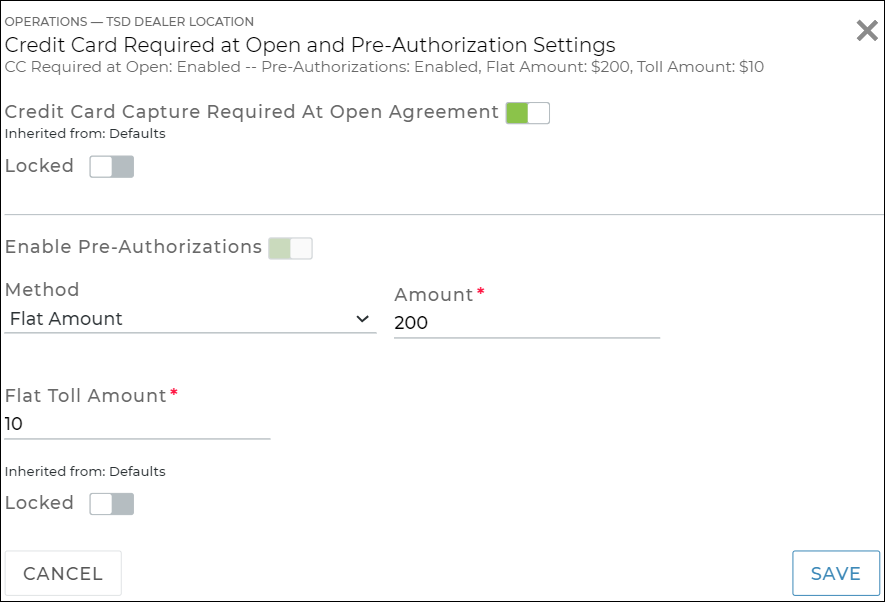
Credit Card Required at Open and Pre-Authorization Settings (Management setting)

Note: This setting is only available at the dealer-level, for locations with Credit Card Processing for agreements and/or tolls. When searching for this setting, make sure you've selected a dealer check box on the left panel, and not just a location check box.

For systems with integrated Credit Card Processing, this setting helps you manage key components of charging and payments, such as requiring a credit card be captured and configuring pre-authorization holds on captured credit cards.

  • Make a credit card required on every new agreement, so one is always on file for potential charges. ClosedRead more:
      1. Toggle on Credit Card Capture Required at Open Agreement.
      2. Note: The Pre-Authorizations toggle is automatically turned on, and dimmed (unavailable for editing).

      3. Save the setting. A credit card will be required in order to open new agreements going forward. For locations with Stripe as the credit card provider, this requirement extends to expedited appointments submitted by customers, if using the Expedited Appointments feature.

      Employee roles with the Allow Override Credit Card Capture permission can override this requirement.

  • Turn on pre-authorizations to hold funds for potential charges. ClosedRead more:
  • Pre-authorizations reserve (hold) funds on a customer's credit card, so it can be used for payment at close agreement (or released, if not used). To learn more about how pre-authorizations actually work on agreements, see "Pre-Authorizations".

    Example: Let's say you have your location set to pre-authorize $50 over the cost of the bill. If an open agreement accrues $100 in charges and fees, $150 would be pre-authorized (the total due + $50) against the customer's credit card.

    Depending on your Agreement Types and integration, you can configure the following:

    • Pre-authorization behavior for agreement charges on all types of agreements (including Rentals, unless otherwise specified). ClosedRead more:
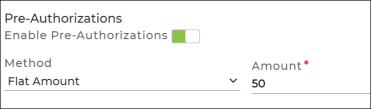
      1. In the Pre-Authorizations section, toggle on Enable Pre-Authorizations, if not toggled on automatically. (This toggle applies to all types of agreements, unless you specify differently in the separate Enable Rental Pre-Authorizations toggle, described below.)
      2. Select the method:
        • Flat Amount (without decimals) on every agreement, regardless of the total charges. So, if you're configured to take a $50 pre-authorization, and the customer owes $100 in total charges, it will still pre-authorize for $50.
        • Amount Over Cost, an additional flat amount (without decimals) over the total charges, minus taxes. So, if you're configured to take a $50 pre-authorization over the cost, and the customer owes $100 in total charges, including a $5.00 flat tax, it will pre-authorize for $145 ($50 over the cost minus taxes).
      3. Enter the amount of the pre-authorization.
      4. Make sure to save the setting.
    • Separate pre-authorization behavior for agreement charges on Rentals (at open, view open). ClosedRead more:
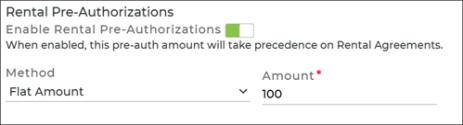
      1. In the Rental Pre-Authorizations section, toggle on Enable Rental Pre-Authorizations. (This toggle applies only to Rental types of agreements; the original Enable Pre-Authorizations toggle setting will not be used at open, or when viewing an open agreement.)
      2. Select the method:
        • Flat Amount (without decimals) on every agreement, regardless of the total charges. So, if you're configured to take a $50 pre-authorization, and the customer owes $100 in total charges, it will still pre-authorize for $50.
        • Amount Over Cost, an additional flat amount (without decimals) over the total charges, minus taxes. So, if you're configured to take a $50 pre-authorization over the cost, and the customer owes $100 in total charges, including a $5.00 flat tax, it will pre-authorize for $145 ($50 over the cost minus taxes).
      3. Enter the amount of the pre-authorization.
      4. Make sure to save the setting.
    • Separate pre-authorization behavior for tolls / violation charges. ClosedRead more:
      1. Note: If you use credit card processing for toll / violation charges in addition to agreement charges, the pre-authorization for tolls / violations is taken separately from the one for agreement charges.

      2. Make sure pre-authorizations are turned on first (via the Enable Pre-Authorizations or Enable Rental Pre-Authorizations toggles, as applicable).
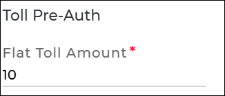
      3. In the Toll Pre-Auth section, enter a Flat Toll Amount to hold specifically for possible toll / violations charges. (This only affects new agreements, going forward, not already-opened agreements.)
      4. Save the setting.


Hover to view the full-sized image.